Drag and Drop Emails with Attachments: If an Outlook Message has an attachment, the attachment will also be converted when you drag and drop the item. In this case, you can convert the item to a Progress Update, Todo, Event or Document
When dragging and dropping emails with attachments, follow the instructions below:
• |
ManagePro and MS Outlook must be open |
• |
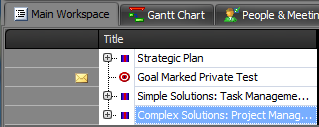
Navigate to the Main Workspace View |
• |
Highlight a record in the tree (this is the record where you'll drop the Outlook item with an attachment) |
• |
Select an email message in MS Outlook with an attachment |
• |
Drag the message down to the ManagePro application in the Task Bar on your computer but don't release your mouse yet |
• |
This makes the Mpro application active (displays on top of all other applications that may also be open) |

• |
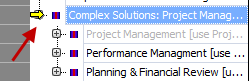
Continue dragging the message up to ManagePro on to the record selected (use the yellow arrow as your guide) |
• |
Release your mouse. Releasing your mouse enables the ManagePro - Outlook Items Dropped Prompt |

• |
Make your conversion selection; select Document |
• |
Alternatively, an attachment can be linked to a Progress Update, Todo or Event |
Once the item is dropped, a mini-icon for the related data type will appear in front of the record. Clicking on any one of the mini icons will take you directly to the item.
Mini-icon descriptions
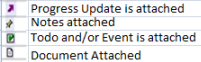
If the attachment is being linked to a Todo, Progress Update, or Event, the Details window will be displayed after selecting the data type. The document is found on the document tab of the Progress Update, Todo, or Event.
